Role-Based Permissions for Farm Teams
Role-based permissions ensure that farm team members access only the tools and information they need based on their roles. This approach improves efficiency, protects sensitive data, and simplifies team management. For example:
- Field Workers: Access timesheets and task lists without viewing payroll or client data.
- Managers: Oversee operations, manage schedules, and track performance while limiting access to financial settings.
- Owners: Handle sensitive data like payroll and system-wide settings.
Key benefits include improved workflows, stronger security, and scalable team management. By limiting access to the "least privilege" required, risks like data breaches and errors are minimized. Tools like HarvestYield simplify this process with pre-set roles and mobile integration, ensuring team members can focus on their tasks without unnecessary distractions or risks.
Benefits of Role-Based Permissions for Farm Teams
Better Team Efficiency
Role-based permissions streamline workflows by displaying only the information each worker needs. For instance, a harvester can view harvest logs, a field technician sees assigned work orders, and a manager has access to the entire operational overview. This focus on relevant data reduces distractions, speeds up tasks, and minimizes errors.
Onboarding becomes a breeze, shrinking from days to just hours. By assigning predefined roles like "Field Technician" or "Grower", permissions are automatically updated when roles change, ensuring accurate access at all times.
For farms with multiple departments, this system also supports secure collaboration. For example, sales teams can share crop yield data with marketing, while accountants can access financial records without exposure to field-level details. Increased efficiency naturally leads to stronger overall security.
Stronger Data Security
Role-based access control (RBAC) protects sensitive information - such as payroll, client records, and financial data - by limiting access to only what each user needs. This "least privilege" approach reduces the risk of both external breaches and internal errors.
The cost of data breaches caused by malicious insiders averages $4.92 million. With RBAC, even if a hacker gains access to a field technician’s account, their reach is confined to that role, preventing lateral movement into more critical systems like administrative or financial platforms. Seasonal operations benefit as well - when a contractor’s job ends, their access can be revoked immediately across all tools, avoiding the risk of forgotten or "orphaned" accounts.
Scalability and Flexibility
RBAC not only enhances efficiency and security but also grows effortlessly with your team. Whether managing five employees or fifty, standardized roles ensure consistent access without the need to adjust individual permissions every time someone joins or leaves.
The system is also highly adaptable. For example, you can assign multiple roles to someone handling both fieldwork and basic reporting, combining permissions to meet their responsibilities. As your farm expands into new areas or adopts new tools, specialized roles like "Equipment Manager" or "Compliance Auditor" can be added without overhauling the entire structure.
External collaborations are easier, too. You can grant "Viewer" access to agronomists, organic certifiers, or auditors, allowing them to review records without the ability to modify or delete any data.
Transform Your Agricultural Team
Streamline job management, field mapping, and machine tracking with HarvestYield. Simplify your operations and eliminate paper job sheets.
ContinueTypical Roles and Permissions in Farm Teams
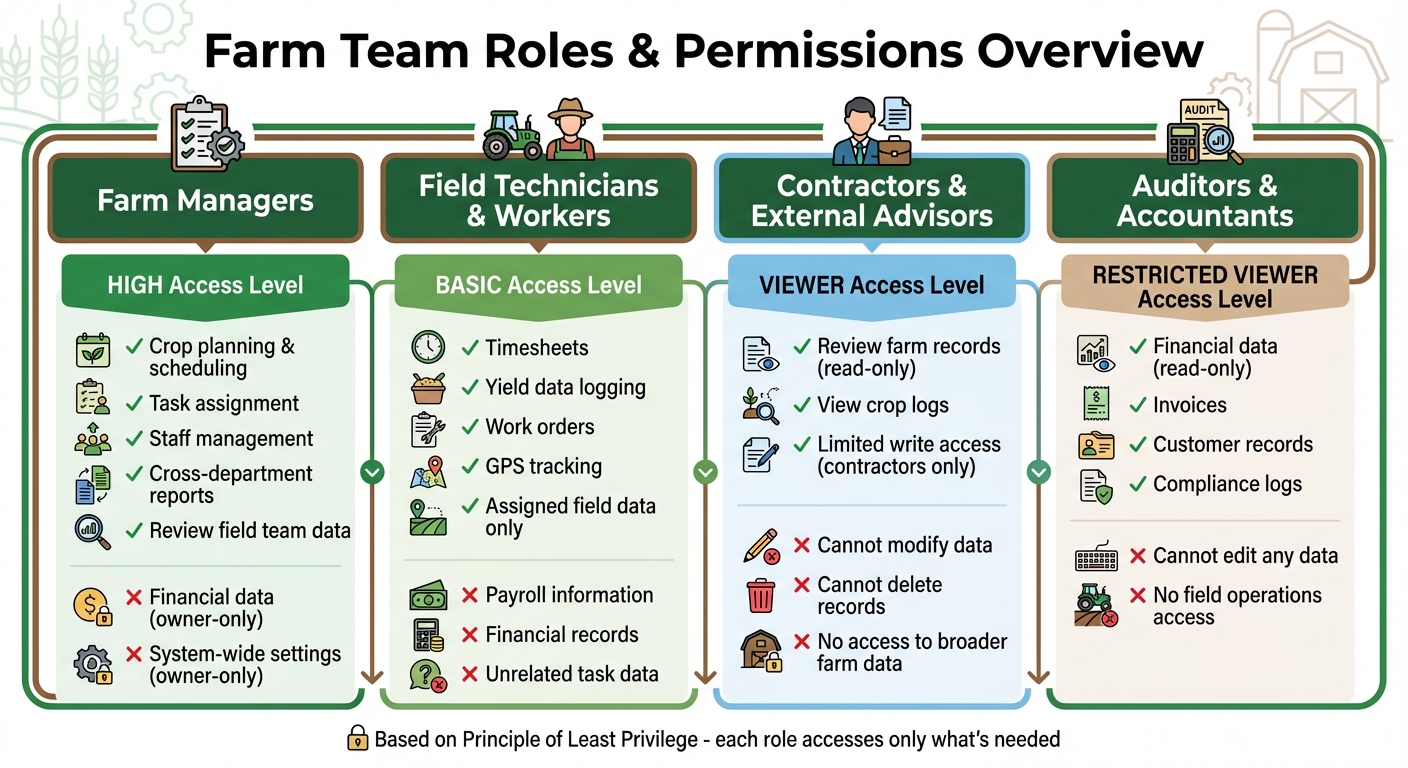
Farm Team Role-Based Permissions Comparison Chart
Farm operations rely on clearly defined roles to ensure efficiency and data security. Assigning specific permissions tailored to each role means team members access only what they need to perform their tasks. This approach streamlines workflows while safeguarding sensitive information.
Farm Managers
Farm managers oversee every aspect of the farm’s operations. Their permissions typically include access to crop planning, scheduling and tracking tasks for the team. They can also review data entered by field teams, manage staff information, and generate reports across departments. However, many farms limit access to the most sensitive functions - such as financial data or system-wide settings - to owners, reducing the risk of unintended changes.
Field Technicians and Workers
Field technicians and workers handle the hands-on tasks of daily farm operations. Their access is often limited to tools they need, such as timesheets, yield data logging, work orders, and GPS tracking. They are typically restricted from viewing payroll, financial records, or data unrelated to their specific tasks. In larger farms, workers might only see data relevant to their assigned fields or compartments, ensuring a focused and efficient workflow.
Contractors and External Advisors
External advisors, such as agronomists and crop consultants, usually receive "Viewer" roles. This allows them to review farm records without making changes. As farmOS notes, "The Farm Viewer role is useful if you want to share your farm's activities with someone, but you don't want to give them the ability to make changes". Contractors, on the other hand, may be granted limited write access - just enough to log their tasks - while keeping broader farm data off-limits. This careful allocation of permissions helps maintain both security and operational clarity.
Auditors and Accountants
Auditors and accountants are granted read-only access to specific financial and compliance-related data. This might include invoices, customer records, and crop logs. By restricting their permissions to viewing only, farms can ensure data integrity during reviews or audits.
How to Set Up Role-Based Permissions
To configure role-based permissions in your farm management software, head to the user management section. It’s typically labeled something like "User Management", "People", or "My Organization". This is where you decide who gets access and what actions they can perform.
Most systems provide two types of roles: managed and unmanaged. Managed roles come preloaded with preset permissions - like Manager, Worker, or Viewer - making them easy to use for standard setups. Unmanaged roles, on the other hand, let you create custom permission sets tailored to your farm’s unique structure. However, these require extra upkeep, especially during software updates. You can also apply permissions across all properties (Default Access) or customize them by farm. For instance, someone might have Manager access on one site but only Viewer access on another.
When setting up permissions, align them with the tools your team uses daily. If your software includes modules like "Scout", "Harvest", "Timesheets", or "Maps", assign access based on job responsibilities. For example, a field technician might only need access to Scout and Timesheets, while a farm manager would likely need reporting and scheduling tools. Following the Principle of Least Privilege - giving each person just enough access to perform their role - can help prevent accidental errors or unauthorized changes.
For seasonal workers or contractors, bulk management tools can save time by assigning multiple users to the same role at once. At the end of the season, you can use the "Revoke License" feature to temporarily remove their access without deleting their profiles. Just remember, user invitations often expire after 28 days, so you may need to resend them if they aren’t accepted in time.
These initial steps lay the groundwork for creating detailed roles and integrating mobile tools, ensuring everyone has the right level of access.
Creating Roles and Assigning Permissions
Start by identifying the tasks associated with each role. For instance, farm managers might edit details, invite users, and generate reports, while field workers could focus on creating yield records and viewing tasks. Use these task lists to create roles that match their responsibilities.
When building roles, you’ll need to choose between assigning full roles or using additive permissions. For example, instead of giving someone full Manager access, you could create a "Report Manager" role that adds specific permissions to a basic Worker role. This approach offers flexibility without granting unnecessary access. Additionally, think about the difference between mobile app access for field tasks and dashboard access for administrative work. A supervisor might use the mobile app to record timesheets but wouldn’t need access to payroll data on the web dashboard.
| Task | Administrator | Manager | Grower | Viewer |
|---|---|---|---|---|
| Edit Farm Details | Yes | Yes | No | No |
| Invite New Users | Yes | Yes (Limited) | No | No |
| Create Yield Records | Yes | Yes | Yes | No |
| Delete Records | Yes | Own Only | No | No |
| View Reports | Yes | Yes | Yes | Yes |
Mobile App Integration
Once roles are set up, mobile integration ensures that on-field users only see what they need. Permissions control which modules appear in the mobile app and what data is available offline. For example, a full-time worker might only see "My Timesheet" and "Scout", while a manager could access modules like "Orchard Management", "Performance", and "Insights".
This separation between mobile and web access helps keep sensitive data secure. Field workers can log GPS-linked timesheets and record harvest bins without seeing financial or payroll information. Meanwhile, supervisors with elevated mobile access can manage team records, which is particularly useful for seasonal laborers who don’t need individual accounts. Before rolling out these settings to your team, test them using a dummy account to ensure sensitive data - like banking details or global yield reports - remains hidden from unauthorized users.
Using a Permissions Table
A permissions table is a handy tool for visualizing roles and their associated tasks. It helps you quickly identify who has access to what and spot any gaps or excessive permissions. Tasks are typically grouped into categories like "User Management", "Crop Cycle", or "Financial/Payroll".
Use clear labels such as "X" or terms like None, Regular, Power, or Full to indicate access levels. These tables are especially helpful when assigning roles to new users, ensuring they receive the correct permissions. They can also highlight areas where roles might need adjustments, either to add missing permissions or to limit unnecessary access. If your software supports custom roles, use the table to decide which permissions to add to the default roles.
| Dashboard Module | None | Regular | Power | Full |
|---|---|---|---|---|
| Harvest Data | X | X | X | |
| Maps & Scouting | X | X | X | |
| Timesheets | X | X | ||
| Admin/Settings | X | X | ||
| Payroll/Financials | X | |||
| Insights/Analytics | X |
Role-Based Permissions in HarvestYield
HarvestYield Features Overview
HarvestYield categorizes users into two primary roles: Managers and Operators. Managers handle scheduling and oversee operations, while Operators focus on recording job details and field maps. The platform's Basic plan is tailored for solo users, granting access to job records and field mapping. In contrast, Manager plans provide individual accounts for each team member, enabling broader collaboration.
Farm work on HarvestYield is divided into Activities (general tasks like planting or spraying) and Jobs (specific tasks, such as "Spraying field ABC on Monday"). Managers assign tasks electronically, which Operators receive directly on their mobile devices. Once tasks are completed, Operators submit timesheets and job records through the app, giving Managers immediate access to operational updates. Importantly, financial data is restricted to Managers, ensuring sensitive information stays secure.
The platform also integrates GPS tracking to confirm field coverage and supports offline data capture for remote areas. All that's required is a smartphone running iOS 9.0+ or Android 5.0+ with a stable internet connection. These features are designed to provide seamless and secure role-based access, streamlining farm team operations.
Setting Up Permissions in HarvestYield
HarvestYield offers customizable user permissions, but these features are only available with a Manager plan. Upgrading from the Basic or Pro plans unlocks the ability to create Operator accounts and assign tasks. Once on a Manager plan, permissions can be set to either "View Only" (read-only access) or "View and Edit" (full access to modify data and manage settings).
The Manager role allows for fine-tuned access control. For instance, you can grant a team lead permission to edit time and expenses for their crew while restricting their ability to view sensitive financial details, such as cost rates or invoices. Using the "Jobs" and "Activities" menus ensures that task assignments remain consistent and organized across the team.
Best Practices for Managing Permissions
To protect your farm's operations, consider these best practices:
- Limit Administrator Access: Restrict full Administrator rights to only a few trusted users. This minimizes the risk of accidental changes to billing, rates, or other critical settings.
- Delegate Manager Permissions: Assign Manager-level permissions to team leads, enabling them to approve time and expenses for their crews without granting full access to the account.
- Seasonal Worker Accounts: For temporary workers, create accounts that allow them to log their work via the mobile app. Limit their access to "View Only" or restrict dashboard access entirely to safeguard sensitive data.
- Regular Role Audits: As your team changes, periodically review and update user roles to ensure that no one retains permissions they no longer need.
Conclusion
Role-based permissions can significantly improve farm operations by enhancing team efficiency, tightening security, and supporting growth. For example, when field technicians access only their assigned tasks and managers oversee financial data, workflows become more streamlined, and administrative bottlenecks are reduced.
By following the Principle of Least Privilege, you can minimize security risks by ensuring employees only have access to the information necessary for their roles. This safeguards sensitive details like wage rates, client records, and billing information, while also making it easier to onboard seasonal workers. With permissions tied to roles, adjustments can be made quickly as your team evolves.
HarvestYield takes this concept further by offering Manager and Operator roles, customizable permissions, and seamless mobile integration. Whether you're overseeing a small farm or coordinating teams across multiple locations, the platform adapts to your needs while keeping your data protected. With role-based permissions in place, your team can access the tools they need to excel without risking sensitive information.
FAQs
How do I decide which permissions each farm role needs?
When setting permissions for each farm role, align access levels with their specific duties. Stick to the principle of least privilege - grant only the permissions needed to complete their tasks. For instance, workers may require access to update job statuses, while managers might need control over user roles and records. Customizing permissions this way reduces risks, keeps processes efficient, and ensures everyone has the right tools to perform their responsibilities effectively.
What’s the best way to handle permissions for seasonal workers and contractors?
When managing seasonal workers or contractors, it's crucial to align their access with their specific responsibilities. By using role-based permissions, you can grant them access to only the tools and functions they need - like viewing records or logging their work - while keeping sensitive settings off-limits.
This approach ensures a balance of security, operational control, and adaptability for temporary team members. It not only protects your system but also helps streamline their onboarding process, making it easier for them to focus on their tasks without unnecessary distractions.
How often should I audit roles to keep access secure as my team changes?
Regularly reviewing roles - ideally every quarter - helps keep access secure as team members come and go. These frequent audits are essential for ensuring permissions remain accurate and to reduce the risk of unauthorized access, particularly in fast-changing team settings.